ይህ ገጽ ገና ወደ አማርኛ አልተተረጎመም። የእንግሊዝኛው ጽሑፍ ቀርቧል።
Quick start
Complete hands-on 15-minute walkthrough from purchase requisition to quotation, purchase order, Model 19 GRN, and stock valuation.
1. Overview & Business Value#
This comprehensive operational guide details the architecture, business workflows, configuration parameters, and execution steps for Quick start within SmartERP.
This walkthrough guides you through a complete procurement and receiving cycle in 15 minutes.
{screenshot:quick-start-overview-dashboard}
2. Prerequisites & Security Access Groups#
- Required Modules:
purchase, stock, smarterp_store_voucher, purchase_requisition - Security Groups:
Purchase User(Technical ID:purchase.group_purchase_user)Purchase Administrator(Technical ID:purchase.group_purchase_manager)Inventory User / Storekeeper(Technical ID:stock.group_stock_user)
- Master Data Dependencies: Product masters, units of measure, approved supplier catalog, warehouse storage locations, and procurement budget lines.
3. Step-by-Step Configuration & Execution#
Step 1: Navigating to the Module Interface#
- Log into your SmartERP instance at
https://smarterp.et/odoo. - Open the main App Switcher (grid icon in the top-left corner).
- Select the Purchase app icon.
- From the top navigation bar, open Purchase → Orders → Purchase Orders / Requisitions; Inventory → Operations.
{screenshot:quick-start-app-switcher-navigation}
Step 2: Creating and Parameterizing Records#
- Click the New button in the top-left control panel.
- Complete the mandatory fields in the record form:
- Vendor / Supplier (Mandatory): Approved vendor profile with verified commercial license and TIN
- Order Lines & Products (Mandatory): Specified items with precise quantities, units of measure, and unit costs
- Delivery Destination (Mandatory): Physical store or warehouse receiving location
- Fiscal Position & Taxes (Mandatory): Statutory 15% VAT and applicable withholding tax terms
- Configure optional operational parameters and localized tags as required:
- Requisition Reference (Optional): Link to approved departmental purchase requisition
- Payment Terms (Optional): Contractual settlement schedule (Net 30, Advance, LC)
- Incoterm & Port (Optional): Shipping terms for import consignments (FOB Djibouti, CIF Bole)
- Click the Save icon in the control bar to commit the record.
{screenshot:quick-start-record-creation-form}
Step 3: Validating and Processing Transactions#
- State Transitions: Execute operational state progression (Draft RFQ → Sent → Confirmed Order → Received (GRN) → Billed → Locked).
- Ledger & System Impact: GRN validation posts stock valuation entries; vendor bill confirmation posts accounts payable and statutory withholding tax liabilities.
- Audit Verification: Automated recording of author ID, timestamp, and immutable revision history.
{screenshot:quick-start-transaction-processing-state}
Prerequisites#
Before starting, ensure you have:
- User assigned to Purchase / User and Inventory / User groups.
- A vendor configured with Ethiopian TIN in
res.partner. - A storable product configured with Automated Inventory Valuation (AVCO or FIFO).
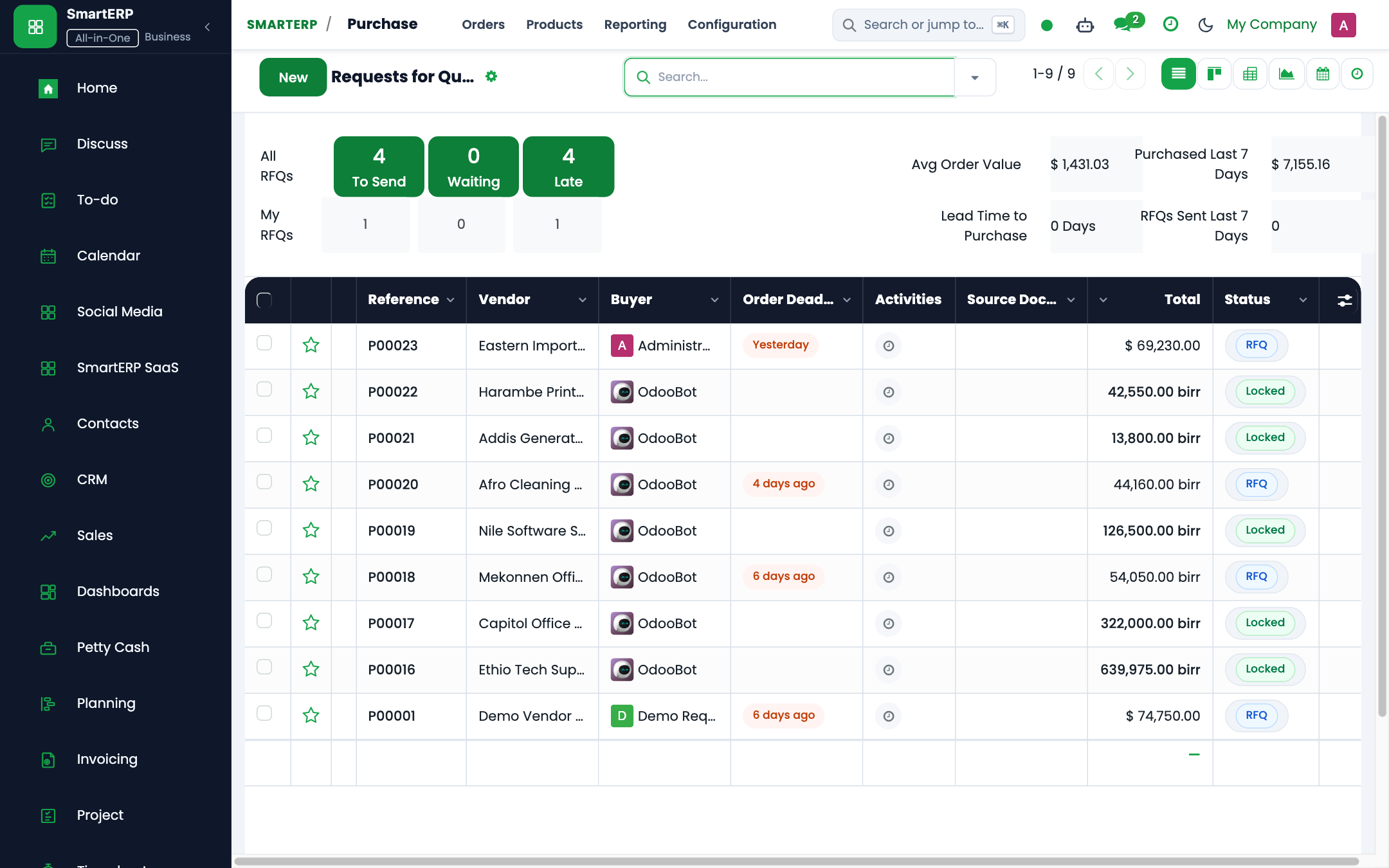
Step 1: Create a Purchase Order#
- Open Purchase → Orders → Requests for Quotation and click New.
- In Vendor, select National Office Supplies PLC.
- In Products, add:
- Heavy-Duty Steel Filing Cabinet: Quantity
10, Unit Price12,500.00 ETB. - Tax:
15% VAT.
- Heavy-Duty Steel Filing Cabinet: Quantity
- Click Confirm Order. The document advances from RFQ to Purchase Order.
Step 2: Perform Receiving and Issue Model 19 GRN#
- Click the smart button Receipt in the top-right corner of the purchase order.
- The
stock.pickingform opens in stateReady. - In Detailed Operations, verify physical counts:
- Done:
10.0. - Storage Location:
WH/Stock/Aisle-01/Bin-B.
- Done:
- Click Validate. SmartERP prints the official Model 19 (Goods Receiving Note / GRN).
Step 3: Register Vendor Bill and Check 3-Way Match#
- Return to the Purchase Order and click Create Bill.
- SmartERP auto-populates the vendor invoice with lines matching the validated GRN receipt.
- Verify that the 3-Way Match badge displays Passed.
- Click Post. The system debits Stock Interim Received and credits Accounts Payable.
Step 4: Verify Inventory Valuation Layer#
- Open Inventory → Reporting → Valuation.
- Locate Heavy-Duty Steel Filing Cabinet.
- Verify the newly posted layer:
- Quantity:
+10. - Unit Cost:
12,500.00 ETB. - Total Value:
125,000.00 ETB.
- Quantity:
4. Advanced Configuration Points#
- Automated Actions & Scheduled Tasks (Crons):
Procurement: Run scheduler (reordering rules)(stock.ir_cron_run_procurement): Runs daily to generate RFQs for inventory items below safety stockStock: Expired lot quarantine trigger(stock.ir_cron_quarantine_expired): Runs daily to isolate batches past shelf lifePurchase: Check supplier delivery deadlines(purchase.ir_cron_check_deadlines): Runs daily to send automated expediting notices to suppliers
- Custom Print Templates & Reports:
- Purchase Order Confirmation (Commercial Contract)
- Ethiopian Goods Receiving Note (GRN / Model 19)
- Store Issue Voucher (SIV / Model 20)
- Vendor Bid Evaluation & Comparison Matrix
- Multi-Company Rules: Record-level security isolation under Company 1 (
Ashewa Technology Solutions S.C.), preventing cross-company ledger leakage across parent and subsidiary legal entities.
5. Comprehensive Troubleshooting Matrix#
| Error Symptom / Exception | Probable Root Cause | Corrective Action / Resolution |
|---|---|---|
Access Rights Error: Cannot confirm Purchase Order | User lacks purchase manager approval privileges. | Escalate order to user with purchase.group_purchase_manager clearance. |
Validation Error: Stock move destination missing | Operation type lacks default internal destination location. | Configure target warehouse location in Inventory → Configuration → Operation Types. |
Quantity Mismatch: GRN vs PO 3-way match failed | Delivered quantity exceeds purchase order limit beyond allowable tolerance. | Verify physical delivery against supplier delivery slip and issue an amended PO or return voucher. |
Budget Reservation Error: Insufficient funds | Departmental budget allocation exhausted for target analytic account. | Submit a budget transfer or supplementary allocation request to the Finance Director. |
Next#
- Set up procurement plans: Create annual procurement plan.
- Create a sealed-bid tender: Create and publish sealed-bid tender.
መጨረሻ የተሻሻለው: 2026-10-30