ይህ ገጽ ገና ወደ አማርኛ አልተተረጎመም። የእንግሊዝኛው ጽሑፍ ቀርቧል።
Employee Self-Service Guide
Navigating the personal portal, logging daily timesheets, requesting leaves, viewing digital payslips, and claiming expenses.
SmartERP 19 provides every employee with a personalized Self-Service Portal. Team members manage their daily schedules, record project hours, submit time-off requests, and inspect their earnings without requiring administrative intervention.
Employee Portal Capabilities#
When an employee logs into SmartERP (https://smarterp.et/web), their dashboard highlights personal tools:
| Feature Area | Menu Path | Technical Model | What You Can Do |
|---|---|---|---|
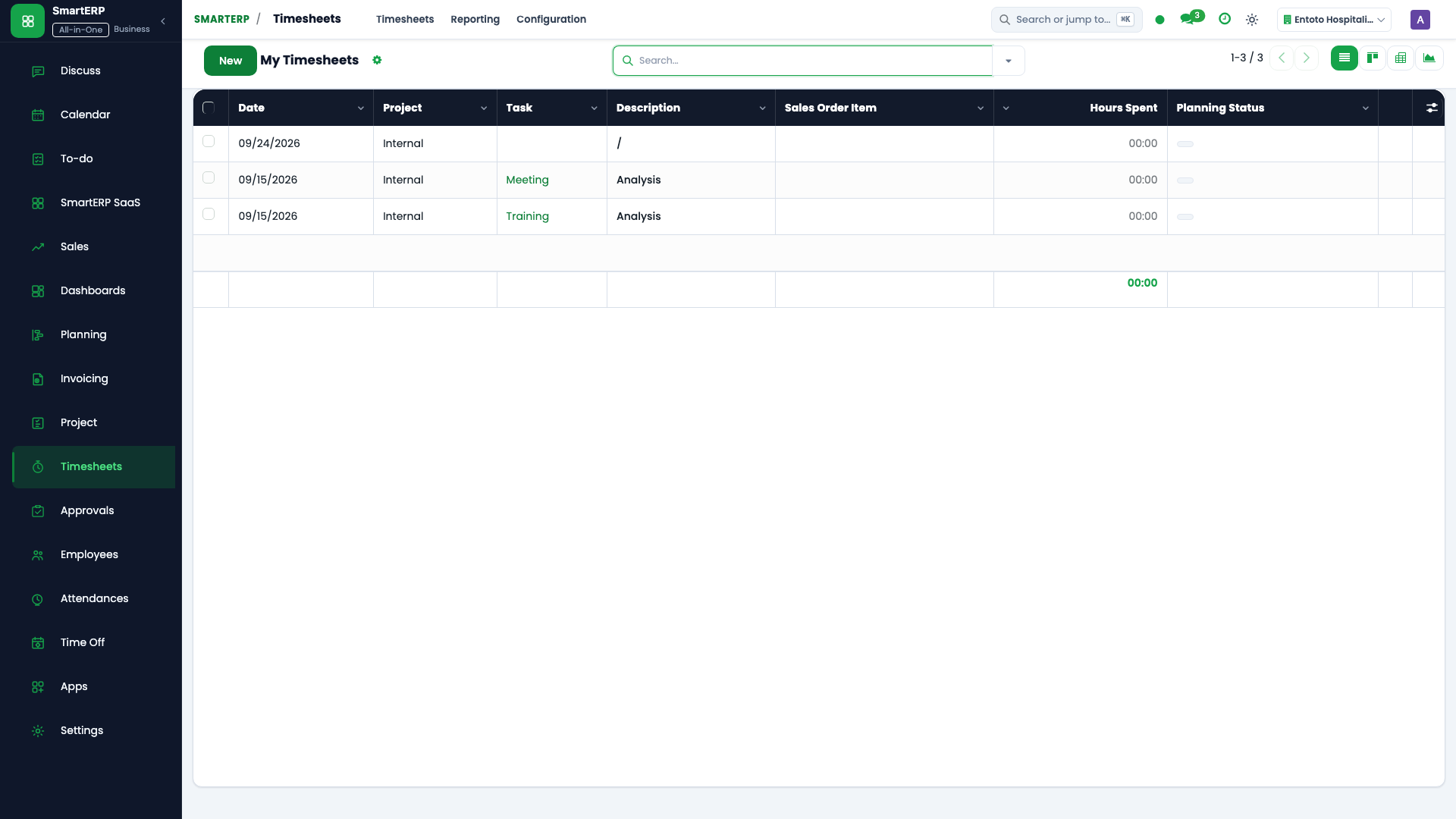
| Daily Timesheets | Timesheets -> My Timesheets | account.analytic.line | Log hours against assigned project tasks and sprint backlog items. |
| Shift Schedule | Planning -> My Planning | smarterp.planning.shift | View published shifts, take open shifts, or request shift transfers. |
| Time Off Requests | Time Off -> My Time Off | hr.leave | Request annual, sick, or maternity leave; inspect remaining balance. |
| Digital Payslips | Payroll -> My Payslips | hr.payslip | Download monthly salary slips with full tax and pension breakdowns. |
| My Approvals | Approvals -> My Requests | smarterp.approval.request | Submit petty cash expenses, travel requests, or equipment requisitions. |
Step-by-Step: Logging Weekly Timesheets#
SmartERP 19 enforces accurate time recording to maintain project margins and client billing accuracy:
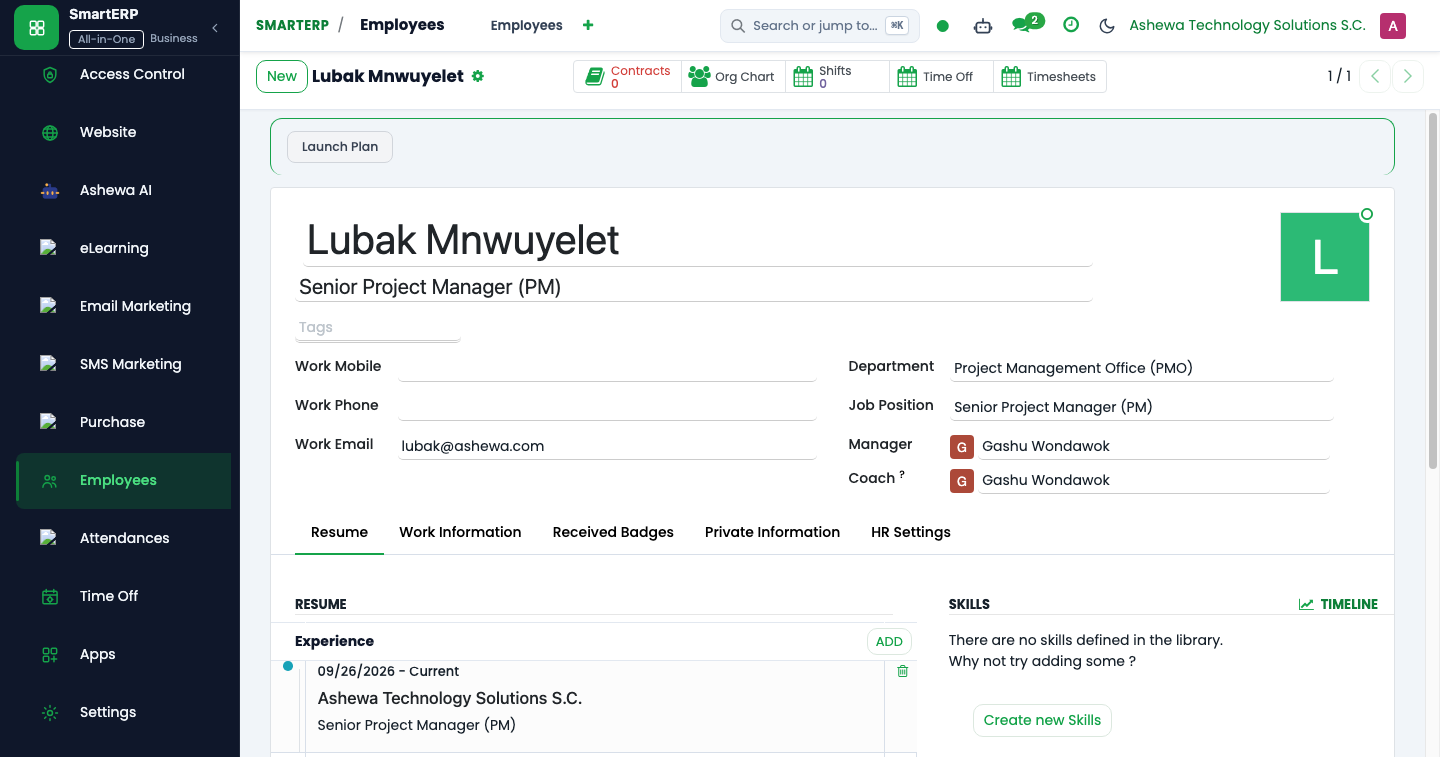
- Open Timesheets -> My Timesheets (
/web#action=hr_timesheet.act_hr_timesheet_line_ev_tree). - Select the Weekly Matrix View to view the current work week.
- Click Add a Line:
- Project: Select the active project you worked on.
- Task: Select your specific sprint user story or engineering task.
- Enter the hours worked for each day (e.g., 8.0 hours).
- Add a brief, meaningful summary in the Description field (e.g., "Completed REST API endpoints for user authentication").
- Click Submit for Approval at the end of the Friday working shift.
+--------------------------------------------------------------------------+
|                     TIMESHEET VALIDATION RULES                           |
+--------------------------------------------------------------------------+
| [x] Daily Maximum: Cannot exceed 12.0 hours without manager override     |
| [x] Weekly Total: Must equal or exceed 40.0 hours for full-time staff     |
| [x] Historical Lock: Cannot log time in closed/locked accounting periods |
| [x] Task Linkage: Every entry must link to an approved active task       |
+--------------------------------------------------------------------------+
Step-by-Step: Requesting Annual Leave#
Time-off balances in SmartERP 19 are synchronized with the Ethiopian working calendar (smart.et.calendar), ensuring public holidays are never deducted from your leave quota:
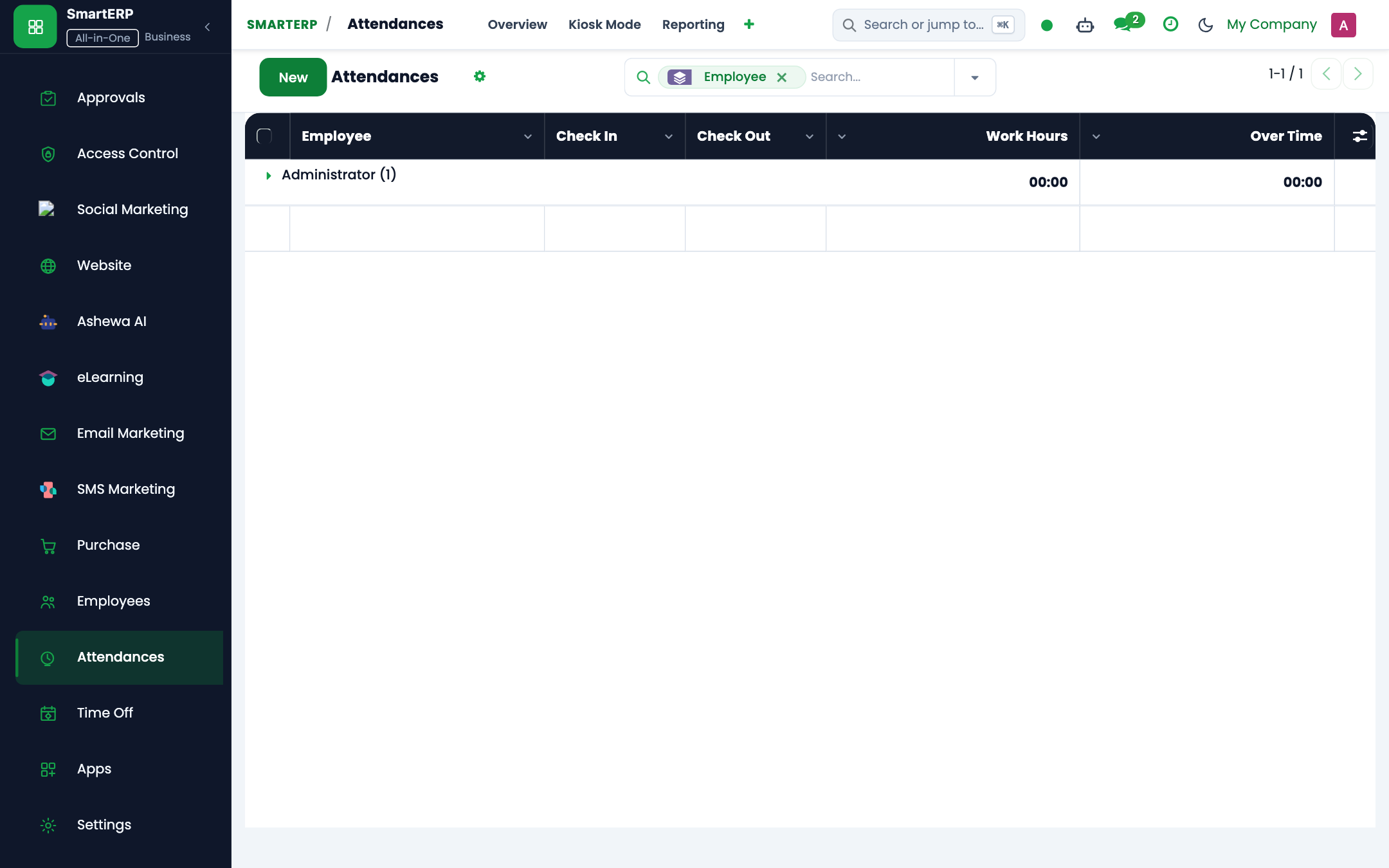
- Navigate to Time Off -> My Time Off -> Time Off Requests.
- Click New.
- Fill in the leave parameters:
- Time Off Type: Select
Annual Leave,Sick Leave, orCompassionate Leave. - Dates: Specify start and end dates. The system automatically computes working days, excluding Saturdays, Sundays, and national holidays.
- Handover Contact: Select the colleague covering your operational duties.
- Time Off Type: Select
- Click Confirm. Your direct manager receives an immediate notification to review and approve the request.
Accessing Monthly Payslips#
- Navigate to Payroll -> My Payslips.
- Select the payslip for the desired month.
- Review the breakdown:
- Basic Salary: Hay grade contractual baseline.
- Allowances: Directive 1 transport and telephone exemptions.
- Deductions: MoR progressive income tax (PAYE) and 7% POESSA employee pension.
- Net Pay: Amount deposited into your CBE or Awash bank account.
- Click Print Payslip to download a digitally signed PDF copy for banking or visa applications.
መጨረሻ የተሻሻለው: 2026-10-16