ይህ ገጽ ገና ወደ አማርኛ አልተተረጎመም። የእንግሊዝኛው ጽሑፍ ቀርቧል።
Approver decisions and SLA management
Comprehensive guide for designated approvers, decision actions (Approve, Refuse, Changes Requested), authority limits, and working-hour SLA escalations.
This guide is for Team Leads, Department Managers, Finance Officers, and Executives acting as authorized approvers.
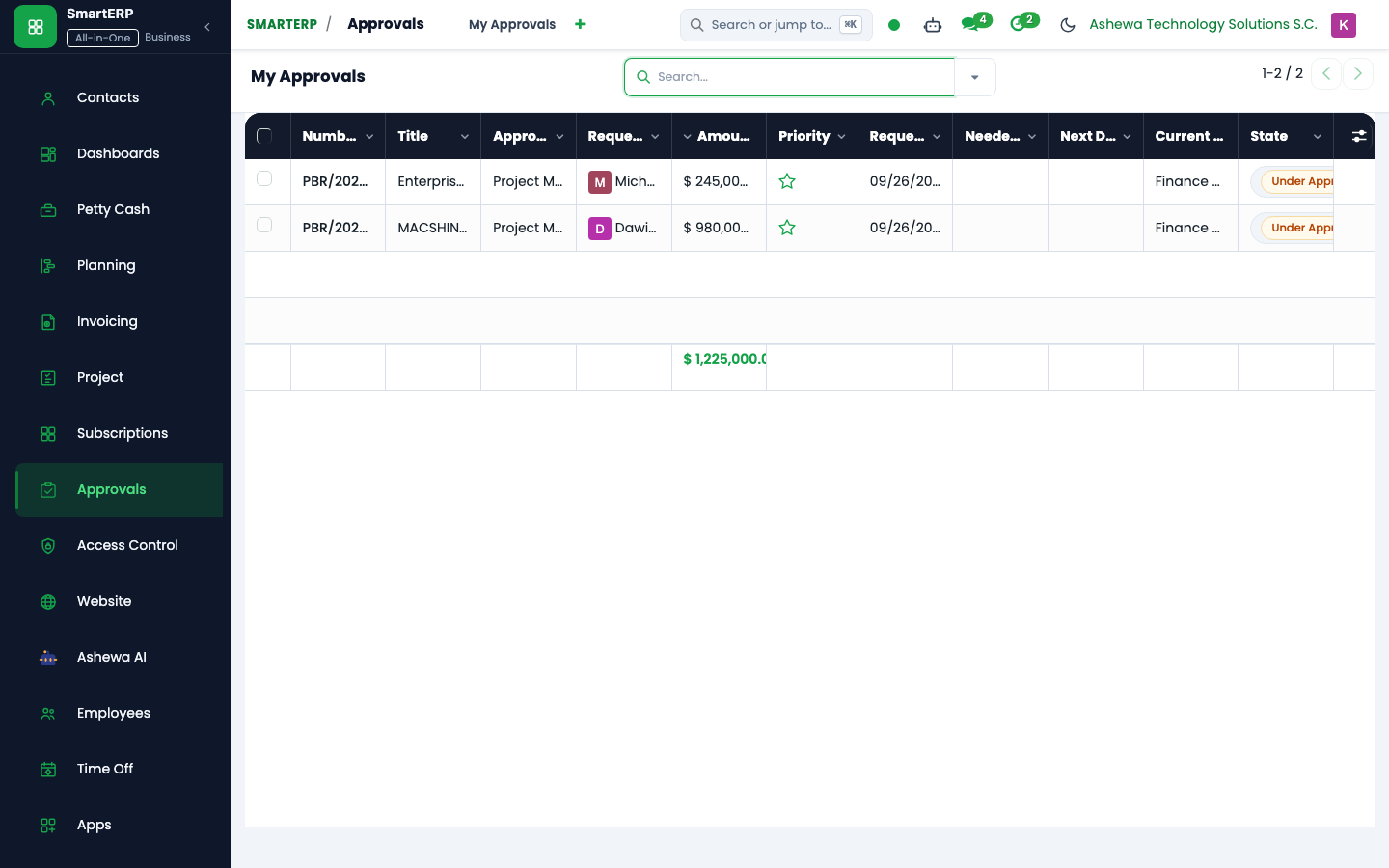
The Approver Operational Console#
When an approval request routes to you:
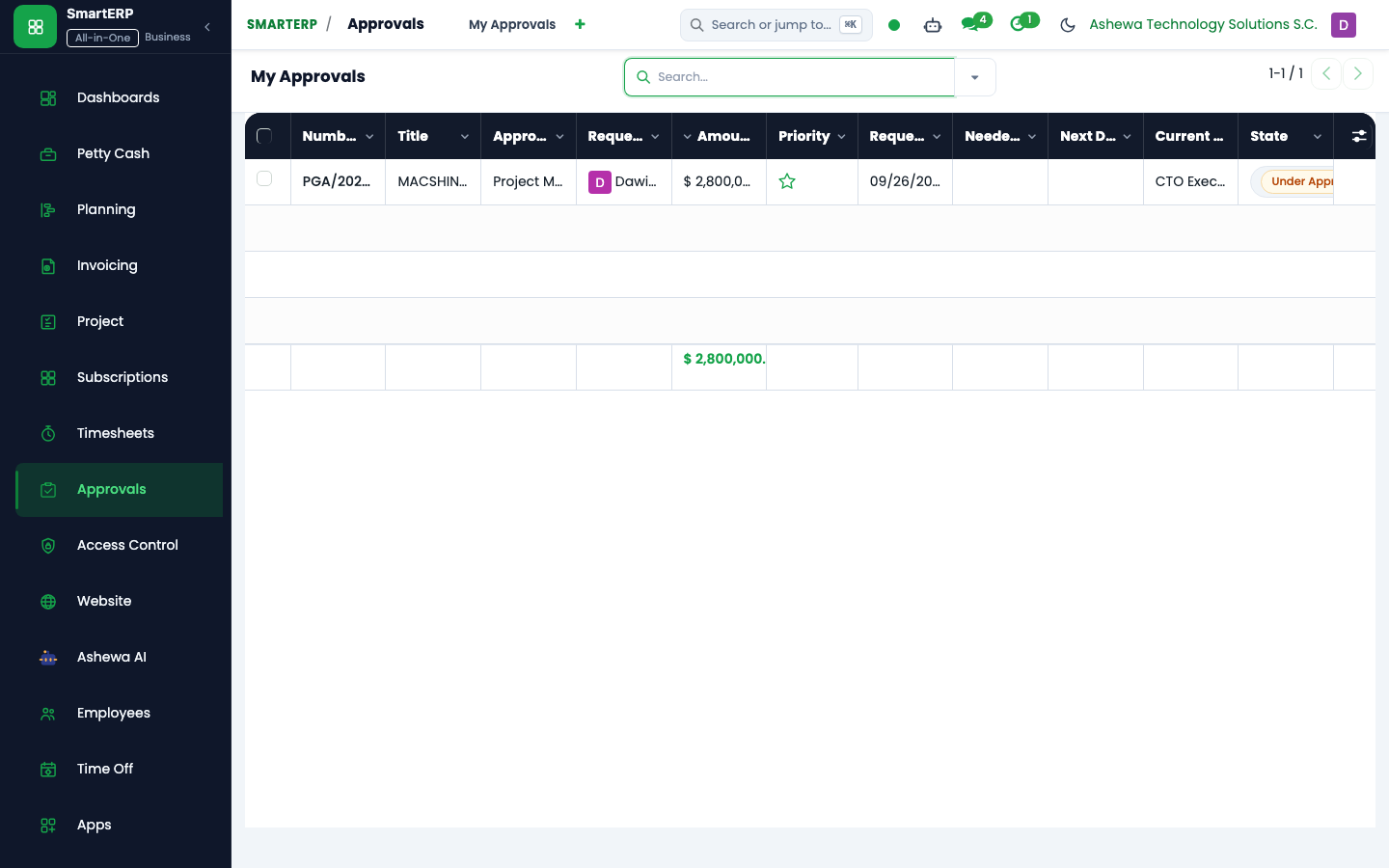
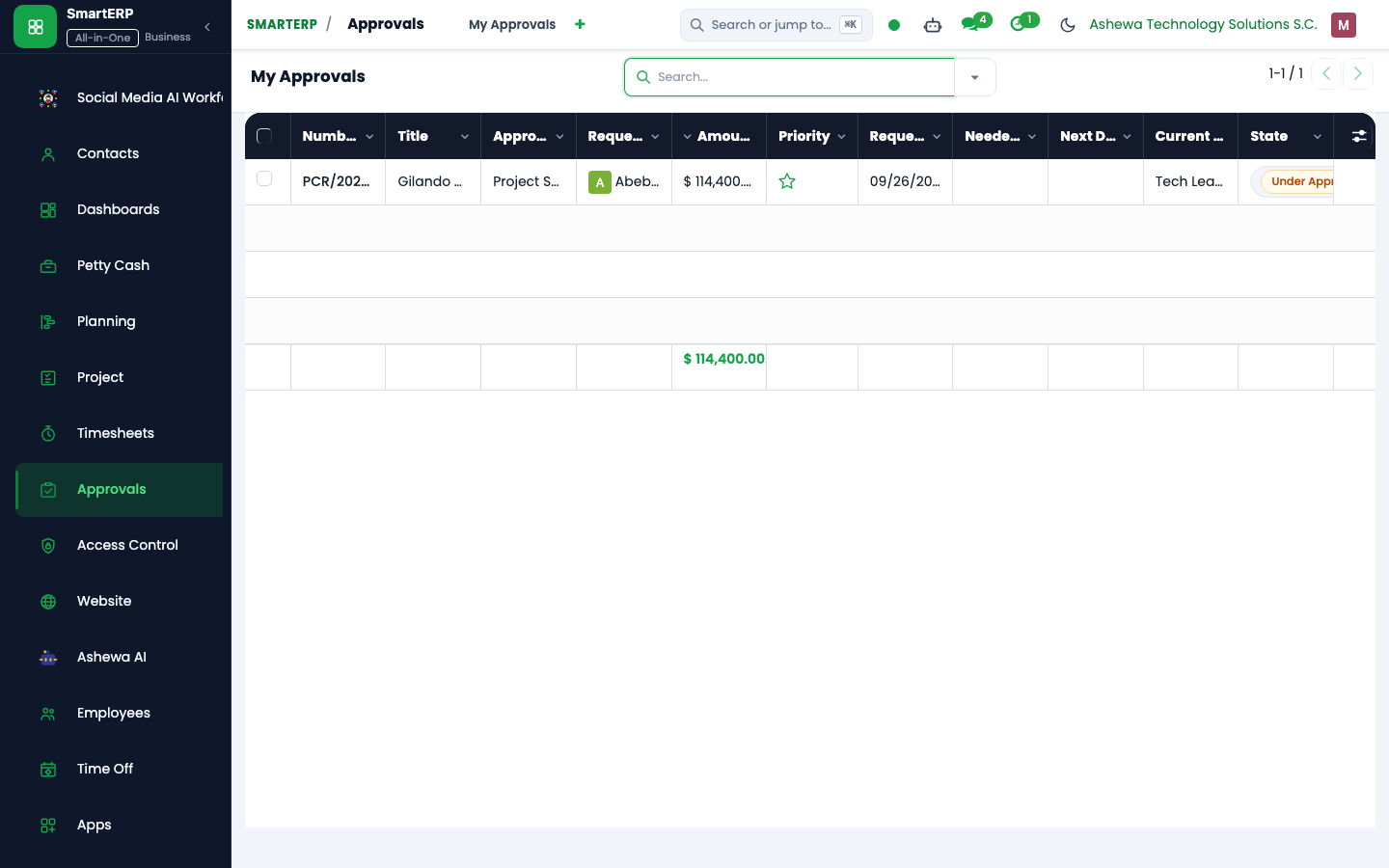
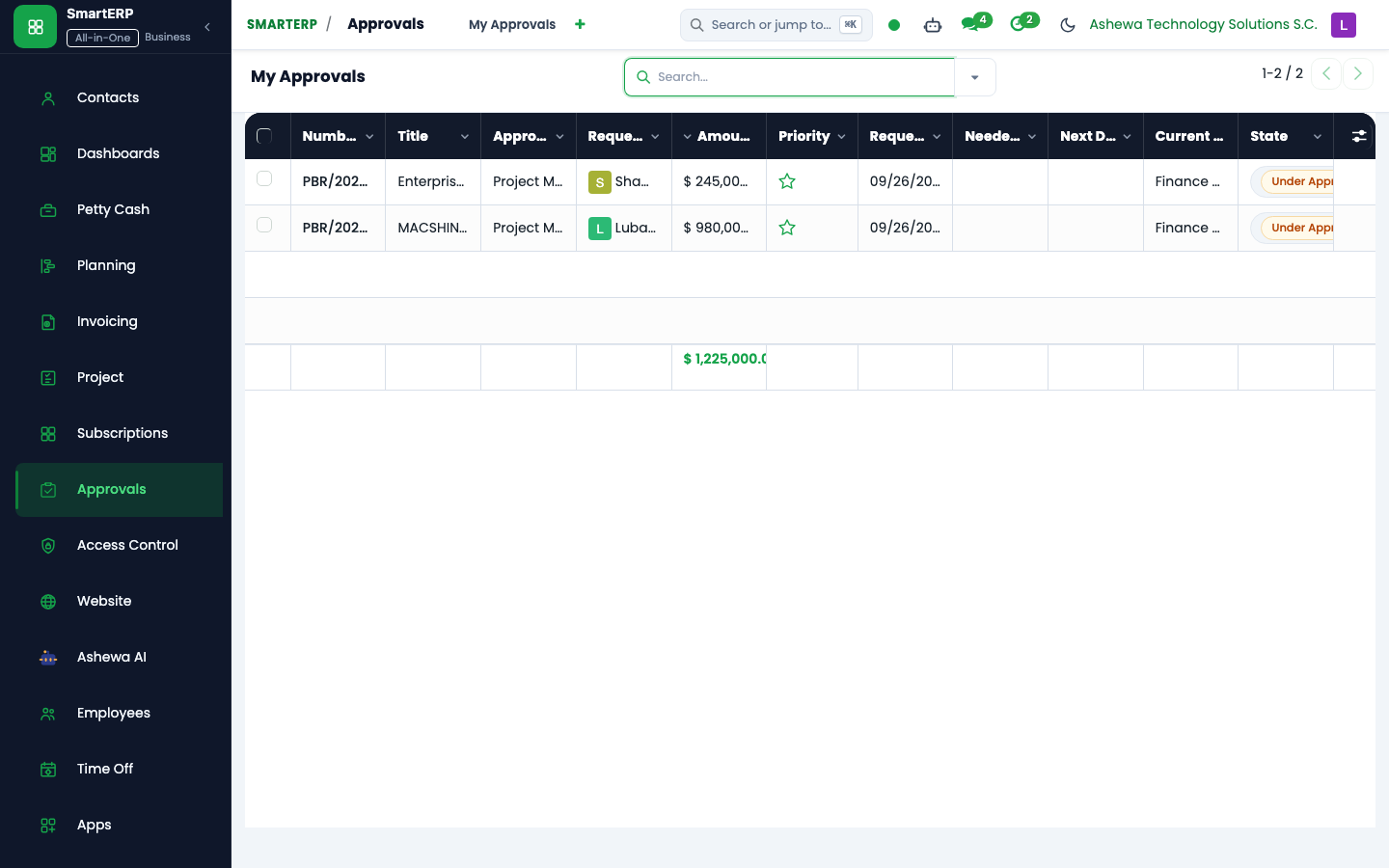
- Navigate to Approvals -> My Approvals.
- The list displays all items requiring your decision, tagged with urgency and SLA badges:
- Due Soon: Less than 24 working hours remaining on SLA.
- SLA Overdue: Elapsed time has exceeded the stage threshold.
- Click on the request to inspect the details, cost center allocation, and attached proformas.
Decision Actions & Rules#
                    +---------------------------+
                    | Request Under Approval    |
                    +---------------------------+
                                  |
         +------------------------+------------------------+
         |                        |                        |
         v                        v                        v
  [ APPROVE ]               [ REFUSE ]          [ REQUEST CHANGES ]
         |                        |                        |
Checks Authority Cap        Mandatory Reason         Sent back to User;
Advances to Next Stage    Halts Transaction Chain    Resubmit restarts route
Action 1: Approve#
Click Approve:
- The system verifies your Authority Limit. If the request amount exceeds your ceiling, the system blocks the action:
Error: Your approval authority limit is ETB 100,000.00. This request requires ETB 240,000.00. - Self-Approval Check: Requesters cannot approve their own requests unless explicitly permitted by policy.
- When the stage condition is satisfied (All, Any, or Quorum), the request advances to the next stage or marks as Approved.
Action 2: Refuse#
- Click Refuse.
- A mandatory dialog requires entering the Refusal Reason (e.g., "Budget line exhausted for Q4 hardware procurement").
- The request transitions to
Refused, halting any downstream PO creation or bill payment.
Action 3: Request Changes#
- Click Request Changes.
- Input the required clarification (e.g., "Attach 3 competitive vendor quotations per corporate sourcing policy").
- The request returns to the requester in
Changes Requestedstate.
መጨረሻ የተሻሻለው: 2026-10-16