Quick start
Complete hands-on 15-minute walkthrough from CRM lead to quotation, sales order confirmation, delivery, and fiscal VAT invoice.
1. Overview & Business Value#
This comprehensive operational guide details the architecture, business workflows, configuration parameters, and execution steps for Quick start within SmartERP.
This walkthrough guides you through a complete commercial cycle in 15 minutes.
{screenshot:quick-start-overview-dashboard}
2. Prerequisites & Security Access Groups#
- Required Modules:
sale_management, crm, point_of_sale, smarterp_payment_telebirr - Security Groups:
Sales User(Technical ID:sales_team.group_sale_salesman)Sales Administrator(Technical ID:sales_team.group_sale_manager)POS User / Cashier(Technical ID:point_of_sale.group_pos_user)
- Master Data Dependencies: Customer partner registry, selling pricelists, product inventory balances, payment providers (Telebirr/CBE Birr), and POS terminal sessions.
3. Step-by-Step Configuration & Execution#
Step 1: Navigating to the Module Interface#
- Log into your SmartERP instance at
https://smarterp.et/odoo. - Open the main App Switcher (grid icon in the top-left corner).
- Select the Sales app icon.
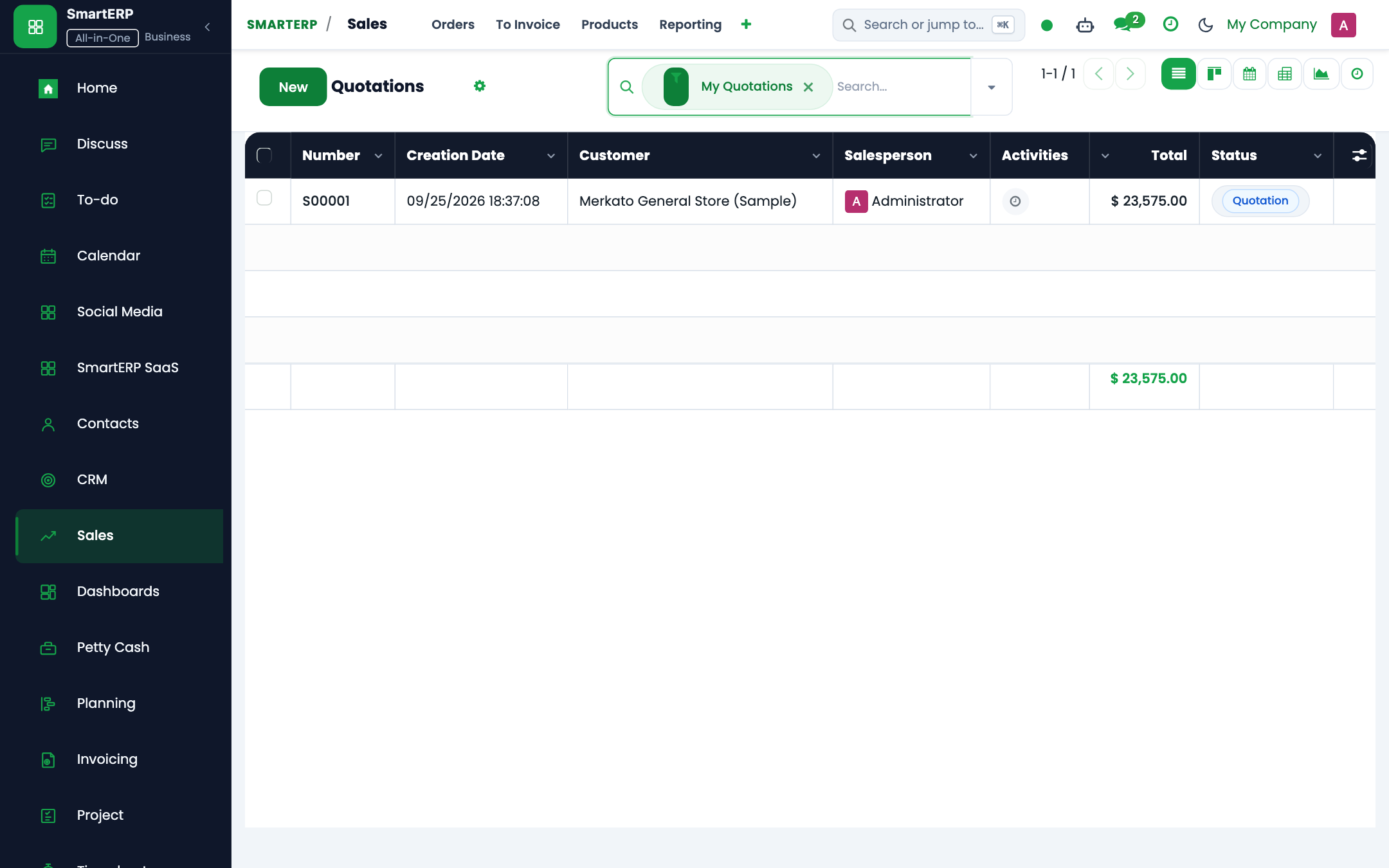
- From the top navigation bar, open Sales → Orders → Quotations / Orders; Point of Sale → Dashboard.
{screenshot:quick-start-app-switcher-navigation}
Step 2: Creating and Parameterizing Records#
- Click the New button in the top-left control panel.
- Complete the mandatory fields in the record form:
- Customer Name (Mandatory): Registered partner record with complete invoicing and delivery addresses
- Product Lines (Mandatory): Saleable items with approved commercial pricelist rates and VAT classification
- Payment Terms (Mandatory): Immediate settlement, milestone advance, or agreed commercial credit terms
- Salesperson (Mandatory): Account executive responsible for the customer commercial relationship
- Configure optional operational parameters and localized tags as required:
- Analytic Account (Optional): Revenue center or project allocation for commercial tracking
- Customer PO Reference (Optional): External purchase order number issued by the client
- Shipping Policy (Optional): Deliver all products at once or allow partial dispatches
- Click the Save icon in the control bar to commit the record.
{screenshot:quick-start-record-creation-form}
Step 3: Validating and Processing Transactions#
- State Transitions: Execute operational state progression (Quotation → Sent → Confirmed Sales Order → Delivery Done → Invoiced → Paid).
- Ledger & System Impact: Generates customer tax invoice, posts accounts receivable debit and sales revenue credit, and updates inventory valuation upon delivery.
- Audit Verification: Automated recording of author ID, timestamp, and immutable revision history.
{screenshot:quick-start-transaction-processing-state}
Prerequisites#
Before starting, ensure you have:
- User assigned to Sales / User and Inventory / User groups.
- A storable product with on-hand stock and standard selling price.
- A customer partner with a verified 10-digit Ethiopian TIN.
Step 1: Create and Qualify a Lead#
- Open CRM → Pipeline and click New.
- Enter opportunity details:
- Organization / Contact: Bole Commercial Bank S.C.
- Opportunity: 50 Workstation Furniture Sets.
- Expected Revenue:
450,000.00 ETB.
- Drag the opportunity card from New to Qualified.
Step 2: Generate Quotation#
- Inside the qualified opportunity, click New Quotation.
- The sales order form opens with customer details pre-filled.
- In Order Lines, add:
- Executive Office Workstation Desk: Quantity
50, Unit Price9,000.00 ETB. - Tax:
15% VAT.
- Executive Office Workstation Desk: Quantity
- Click Send by Email to generate the branded quotation PDF and email it to the customer.
Step 3: Confirm Sales Order and Check Credit Limit#
- When the client approves the proposal, click Confirm.
- SmartERP runs an automated credit limit check:
- Verified that customer exposure is within approved ceiling.
- The document advances from Quotation to Sales Order.
- An outbound delivery picking (
stock.picking) is automatically created and stock is reserved.
Step 4: Deliver Products and Issue Fiscal VAT Invoice#
- Click the Delivery smart button in the top right.
- Verify picked serial numbers and click Validate to execute delivery.
- Return to the Sales Order and click Create Invoice.
- Select Regular Invoice and click Create and View Invoice.
- Verify the 15% VAT output line and customer TIN.
- Click Confirm. The official legal Ethiopian VAT invoice is generated with legal Form 3.10 numbering.
4. Advanced Configuration Points#
- Automated Actions & Scheduled Tasks (Crons):
CRM: Lead auto-assignment(crm.ir_cron_lead_assign): Runs hourly to allocate unassigned leads across sales teamsSales: Expire overdue quotations(sale.ir_cron_expire_quotes): Runs nightly to mark stale quotes as cancelledPOS: Close abandoned register sessions(point_of_sale.ir_cron_session_cleanup): Runs nightly to alert managers of open cashier terminals
- Custom Print Templates & Reports:
- Customer Sales Quotation / Pro-forma Invoice
- Commercial Tax Invoice (Model 85 Compliant)
- POS Cash Register Receipt with QR Validation
- Customer Credit Limit & Receivables Aging Statement
- Multi-Company Rules: Record-level security isolation under Company 1 (
Ashewa Technology Solutions S.C.), preventing cross-company ledger leakage across parent and subsidiary legal entities.
5. Comprehensive Troubleshooting Matrix#
| Error Symptom / Exception | Probable Root Cause | Corrective Action / Resolution |
|---|---|---|
Credit Limit Blocked: Customer balance exceeds ceiling | Outstanding customer debt plus current order exceeds approved credit limit. | Obtain credit committee exception approval or collect an advance cash payment. |
Validation Error: Tax definition missing on product line | Product item lacks default statutory 15% VAT mapping. | Update the product master accounting tab with standard statutory VAT rates. |
POS Session Error: Cash register mismatch upon closure | Physical cash count does not reconcile with POS recorded register balance. | Document discrepancy explanation in the closing wizard and submit for manager review. |
Payment Gateway Error: Telebirr timeout | Network timeout or invalid API bridge credentials. | Verify merchant credentials in Invoicing → Configuration → Payment Providers and retry transaction query. |
Next#
- Manage pipeline stages: Manage CRM pipeline stages and lead scoring.
- Configure customer dossiers: Configure customer master dossier.
Last updated: 2026-10-30